Project Defaults
Project Defaults
Project Defaults configure the baseline settings for your SkySaver project. These settings apply to all connected AWS accounts unless overridden at the account level.
Accessing Project Defaults
Navigate to Tenant Management and click the Defaults tab.
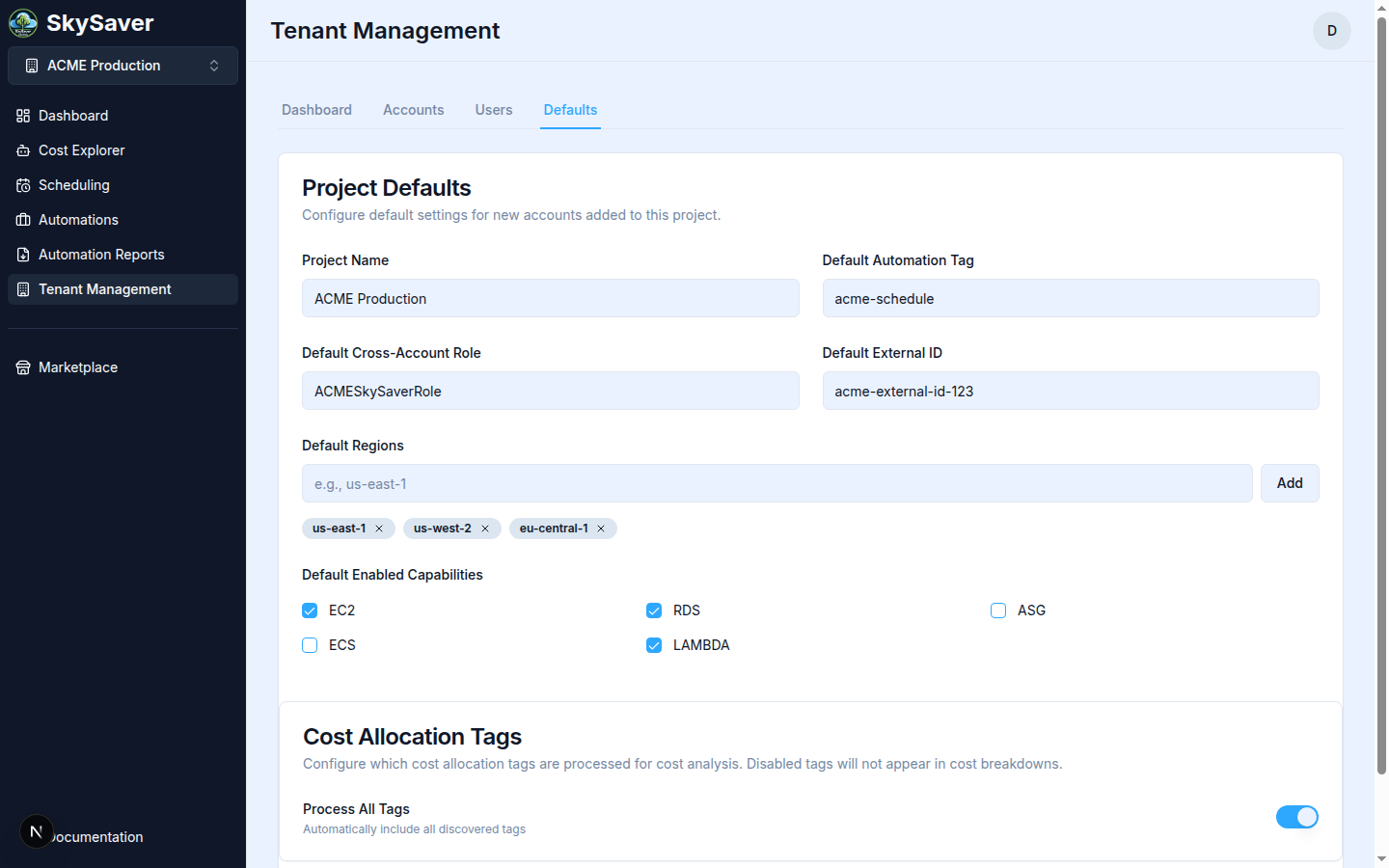
Available Settings
| Setting | Description | Default |
|---|---|---|
| Project Name | Display name for your SkySaver project | — |
| Default Automation Tag | Tag key for schedule matching on AWS resources | SkySaverSchedule |
| Default Cross-Account Role | IAM role name SkySaver assumes in your accounts | SkySaverScheduler |
| Default External ID | Security token for role assumption | Auto-generated |
| Default Regions | AWS regions to scan | None (must configure) |
| Default Enabled Capabilities | Which resource types to schedule (EC2, RDS, ASG, Lambda) | None |
| Cost Allocation Tags | Toggle to process all discovered cost allocation tags | Off |
Configuring Services
Enable the AWS services you want SkySaver to manage:
Available Services
| Service | Description |
|---|---|
| EC2 | Elastic Compute Cloud instances |
| RDS | Relational Database Service instances |
| Lambda | Lambda functions (concurrency) |
| ASG | Auto Scaling Groups |
Enabling Services
- Navigate to Tenant Management > Defaults tab
- Check the boxes for desired capabilities under Default Enabled Capabilities
- Click Save All Settings
Note: Only enabled services will be scanned for scheduling. Enable only what you need to minimize API calls.
Configuring Regions
Add all AWS regions where your resources are located:
Adding Regions
- Navigate to Tenant Management > Defaults tab
- Type a region name in the Default Regions field (e.g.,
us-east-1) - Click Add
- Click Save All Settings
Common Regions
| Region | Description |
|---|---|
us-east-1 | N. Virginia |
us-west-2 | Oregon |
eu-west-1 | Ireland |
eu-central-1 | Frankfurt |
ap-southeast-1 | Singapore |
Tag Configuration
The Default Automation Tag is the AWS resource tag key used for schedule matching:
Setting the Default Automation Tag
- Navigate to Tenant Management > Defaults tab
- Find the Default Automation Tag field
- Enter your preferred tag key (e.g.,
SkySaverSchedule) - Click Save All Settings
Tag Considerations
- Keep tag names consistent across accounts
- Avoid spaces in tag names
- Consider including “SkySaver” for clarity
- Document your tag naming convention
Role Configuration
Default Cross-Account Role
The IAM role name that SkySaver assumes in your AWS accounts:
- Default:
SkySaverScheduler - Must match the role created by CloudFormation
- Can be overridden per account
External ID
A security token used when assuming IAM roles:
- Auto-generated UUID per project
- Must match the External ID in your IAM role trust policy
- Keep this value secure
Saving Settings
To save project defaults:
- Make your changes in the form
- Click Save All Settings
- Changes take effect immediately
Account-Level Overrides
Individual AWS accounts can override these defaults:
| Setting | Override Location |
|---|---|
| Tag | Tenant Management > Accounts tab > Edit |
| Regions | Tenant Management > Accounts tab > Edit |
| Services | Not overridable (project-wide) |
Cost Allocation Tags Configuration
Configure which AWS cost allocation tags SkySaver uses for the Cost By Tag dashboard chart and Cost Explorer tag filters.
Prerequisites
Tags must be activated in your AWS Billing Console before adding them here. See Cost Allocation Tags for AWS activation steps.
Enabling Cost Allocation Tags
- Navigate to Tenant Management > Defaults tab
- Scroll to the Cost Allocation Tags section
- Toggle Process All Tags on to automatically include all discovered tags in cost breakdowns
- Click Save All Settings
Tip: When Process All Tags is enabled, all cost allocation tags active in your AWS Billing Console will appear in Cost Explorer filters and the Cost By Tag chart.
Best Practices
- Start minimal - Enable only necessary services
- Be consistent - Use the same tag across all accounts
- Document - Record your External ID securely
- Review regularly - Audit settings as needs change
Impact of Changes
| Change | Effect |
|---|---|
| Enable service | Starts scanning that resource type |
| Disable service | Stops all scheduling for that type |
| Add region | Starts scanning in new region |
| Remove region | Stops scanning in that region |
| Change tag | Must update AWS resource tags to match |
Troubleshooting
| Issue | Cause | Solution |
|---|---|---|
| Resources not found | Region not added | Add region to defaults |
| Schedules not running | Service not enabled | Enable service in defaults |
| Role assumption fails | External ID mismatch | Verify External ID matches |
Related Topics
- AWS Account Setup - IAM role configuration
- Managing Accounts - Account-level settings
- Key Concepts - Understanding projects