Automations
Automations Overview
SkySaver Automations are powerful background processes that continuously optimize your AWS environment. They handle everything from resource scheduling to storage optimization and cleanup tasks.
Automation Types
SkySaver offers three types of automations, each suited for different optimization scenarios:
| Type | Description | Execution |
|---|---|---|
| Continuous | Runs constantly, processing data as it becomes available | Always active when enabled |
| Cadence | Runs on a regular schedule (hourly, daily, etc.) | Scheduled intervals |
| Trigger | Runs on-demand when manually initiated | User-triggered |
Available Automations
| Automation | Type | Description |
|---|---|---|
| Resource Scheduling | Continuous | Schedules EC2, RDS, Lambda, and ASG resources |
| Cost Explorer | Continuous | Collects and visualizes AWS cost data |
| Apply S3 Intelligent Tiering | Cadence | Automatically applies S3 Intelligent-Tiering lifecycle policies to eligible buckets |
| Orphaned Security Group Finder | Trigger | Finds security groups not associated with any active resources |
| Unattached Network Interface Finder | Trigger | Finds ENIs with status “available” (not attached to any resource) |
Managing Automations
Viewing Automations
Navigate to Automations in the main menu to see all available automations.
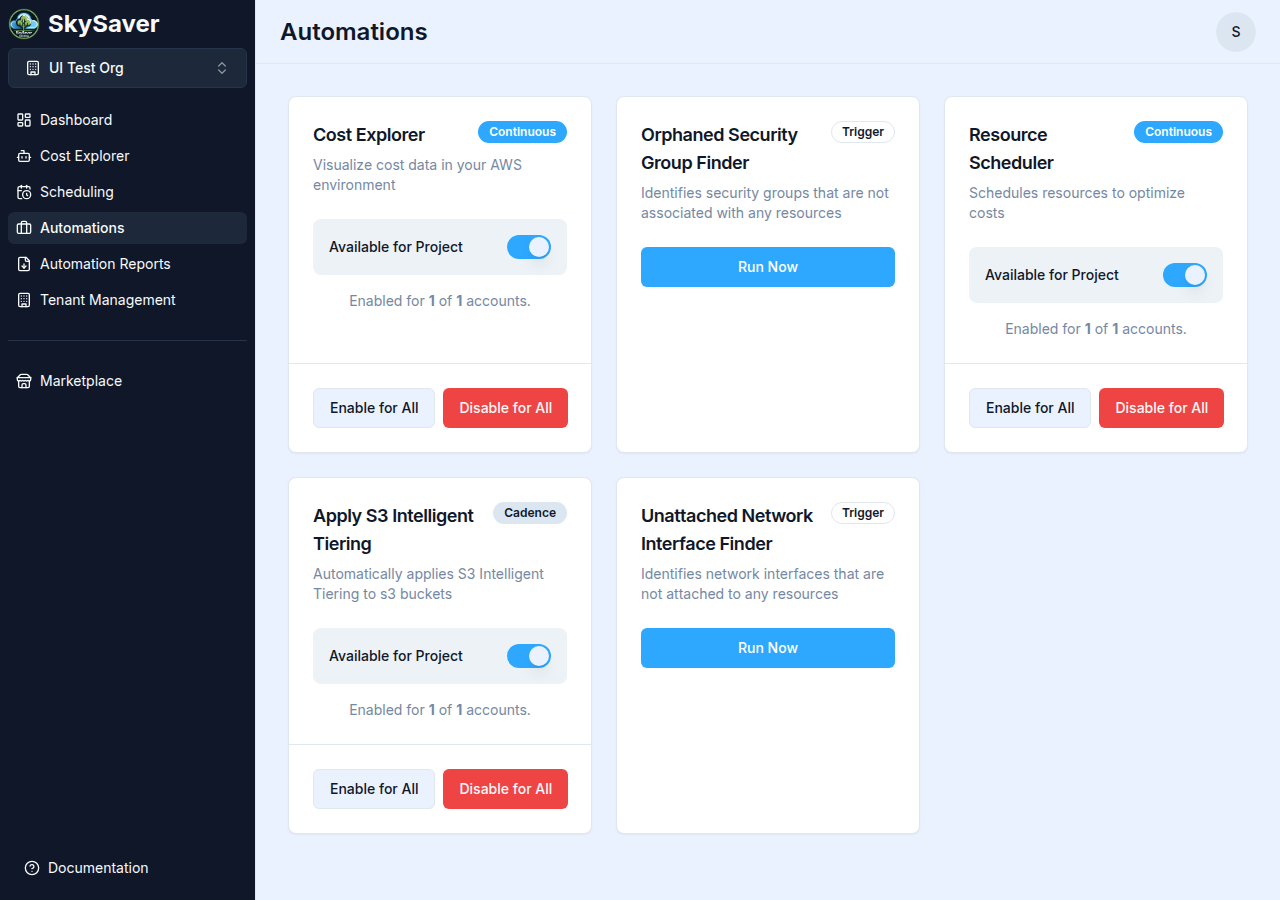
Continuous and Cadence automation cards display:
- Automation name and description
- Type badge (continuous/cadence)
- Available for Project toggle — enables the automation at the project level
- Account coverage stat — Enabled for X of Y accounts
Trigger automation cards display:
- Automation name and description
- Type badge (trigger)
- Run Now button — starts an on-demand execution
Enabling/Disabling Automations
Continuous and Cadence automation cards have a toggle to enable or disable the automation for your project. You can also use the bulk action buttons to apply the change across all accounts at once:
- Enable for All — enables the automation on every connected AWS account
- Disable for All — disables the automation on every connected AWS account
Individual account-level toggles can be managed from Tenant Management > Accounts.
Triggering On-Demand Automations
For Trigger-type automations:
- Click the Run Now button on the automation card
- In the dialog that appears, select which AWS accounts to scan (all accounts are pre-selected by default)
- Confirm to start the run
- View results in Automation Reports
Automation Status
| Status | Meaning |
|---|---|
| Enabled | Automation is active and running |
| Disabled | Automation is not running |
| Running | Automation is currently executing |
| Error | Last execution encountered an issue |
Monitoring Automations
Track automation activity through:
- Automation Reports - Detailed execution history and per-run result summaries
Best Practices
- Start with Trigger automations - Run on-demand first to understand what changes will be made
- Review reports regularly - Check Automation Reports for execution status and findings
- Enable incrementally - Enable one automation at a time to understand its impact
- Monitor costs - Use Cost Explorer to track savings from automations
In This Section
- Resource Scheduler - Automated resource scheduling
- Cost Explorer Automation - Cost data collection
- S3 Intelligent Tiering - S3 storage optimization
- Orphaned Security Group Finder - Orphaned security group detection
- Unattached Network Interface Finder - Unattached ENI detection
- Automation Reports - Execution history and downloads